
Agent Management
After creating an agent, you can perform various management tasks such as editing, activating/deactivating, and deleting.
Agent List
View List
Click the Agent tab in the left sidebar to see the list of agents in the current project.
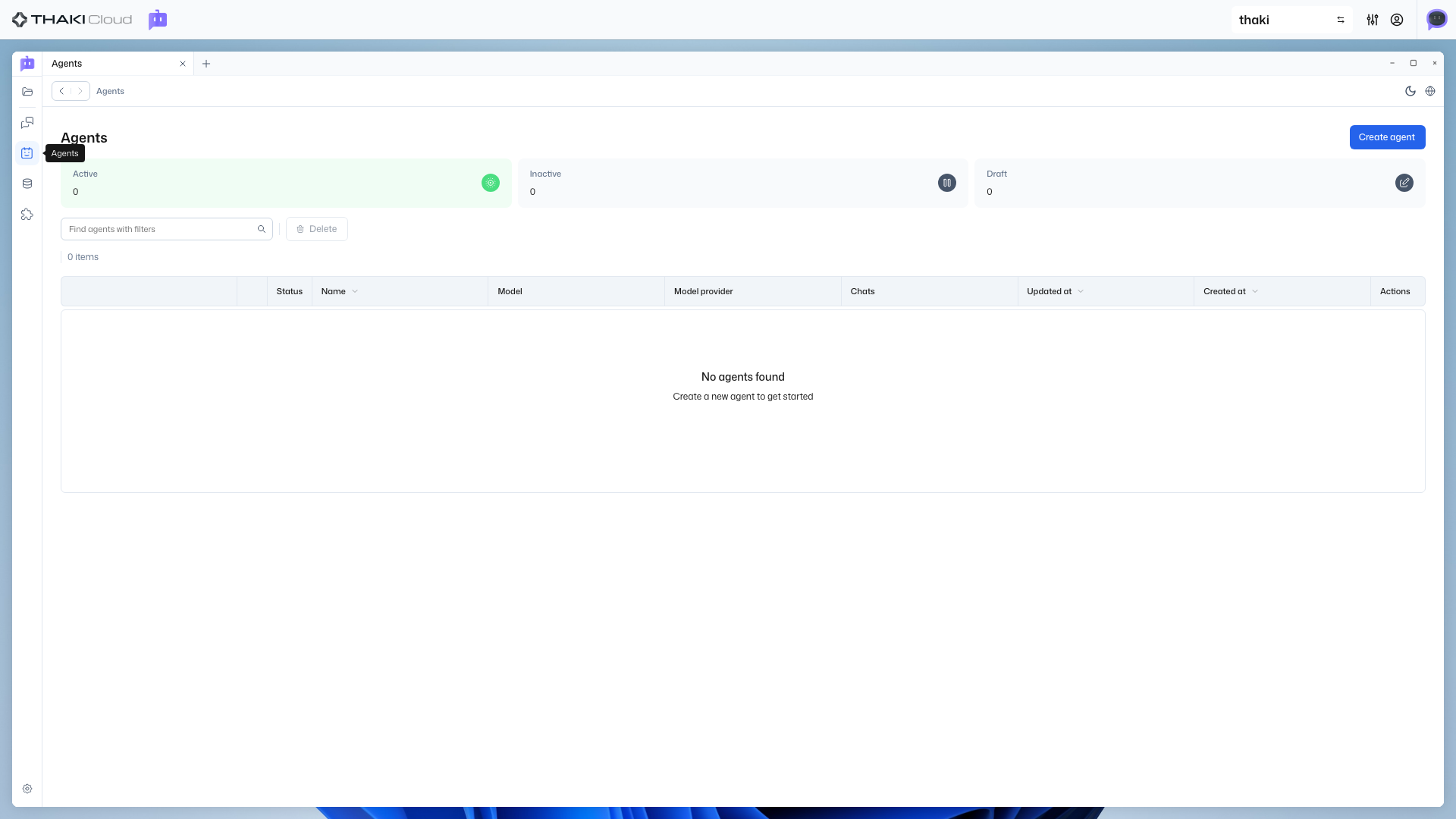
Status Reference
| Status | Description | Chat Available |
|---|---|---|
Active | Active state | ✅ |
Inactive | Inactive state | ❌ |
Draft | Draft state | ❌ |
Edit Agent
1. Navigate to Detail Page
Click on the agent you want to edit from the agent list.
2. Edit Mode
Click the Edit button to enter edit mode.
Editable Items
| Item | Description |
|---|---|
| Name | Agent name |
| Description | Agent description |
| System Prompt | Default behavior instructions |
| Data Sources | Connected data sources |
| MCP Servers | Connected MCP servers |
3. Save
Review your changes and click the Save button.
Activate / Deactivate
You need to activate an agent to use it in chat.
Activate
- Go to the agent detail page
- Click the Activate button
- Status changes to
Active
Deactivate
- Go to the agent detail page
- Click the Deactivate button
- Status changes to
Inactive
Deactivation Notice
Deactivated agents are not shown in the chat list and cannot start conversations.
Delete Agent
You can delete agents that are no longer needed.
- Go to the agent detail page
- Click the Delete button
- Click Confirm in the confirmation popup
Deletion is Irreversible
Deleted agents and related chat history cannot be recovered. Make this decision carefully.
Agent Connected Resources
Resources that can be connected to an agent.
Agent
├── Data Source (connected data sources)
└── MCP Server (connected MCP servers)Switch Projects
If you have multiple projects, you can switch projects using the project selector at the top.
Next Steps
- DataSource Management - Add knowledge to your agent by uploading documents
- MCP Installation - Connect external tools to your agent
- Quick Start - Start from the beginning