
MCP Installation
With MCP (Model Context Protocol), you can connect external tools and services to your agent. Add various capabilities like search, code execution, and API calls.
MCP Server Catalog
1. Navigate to MCP Tab
Click the MCP tab in the left sidebar.
2. Browse Catalog
Check the list of available MCP servers in the Catalog tab.
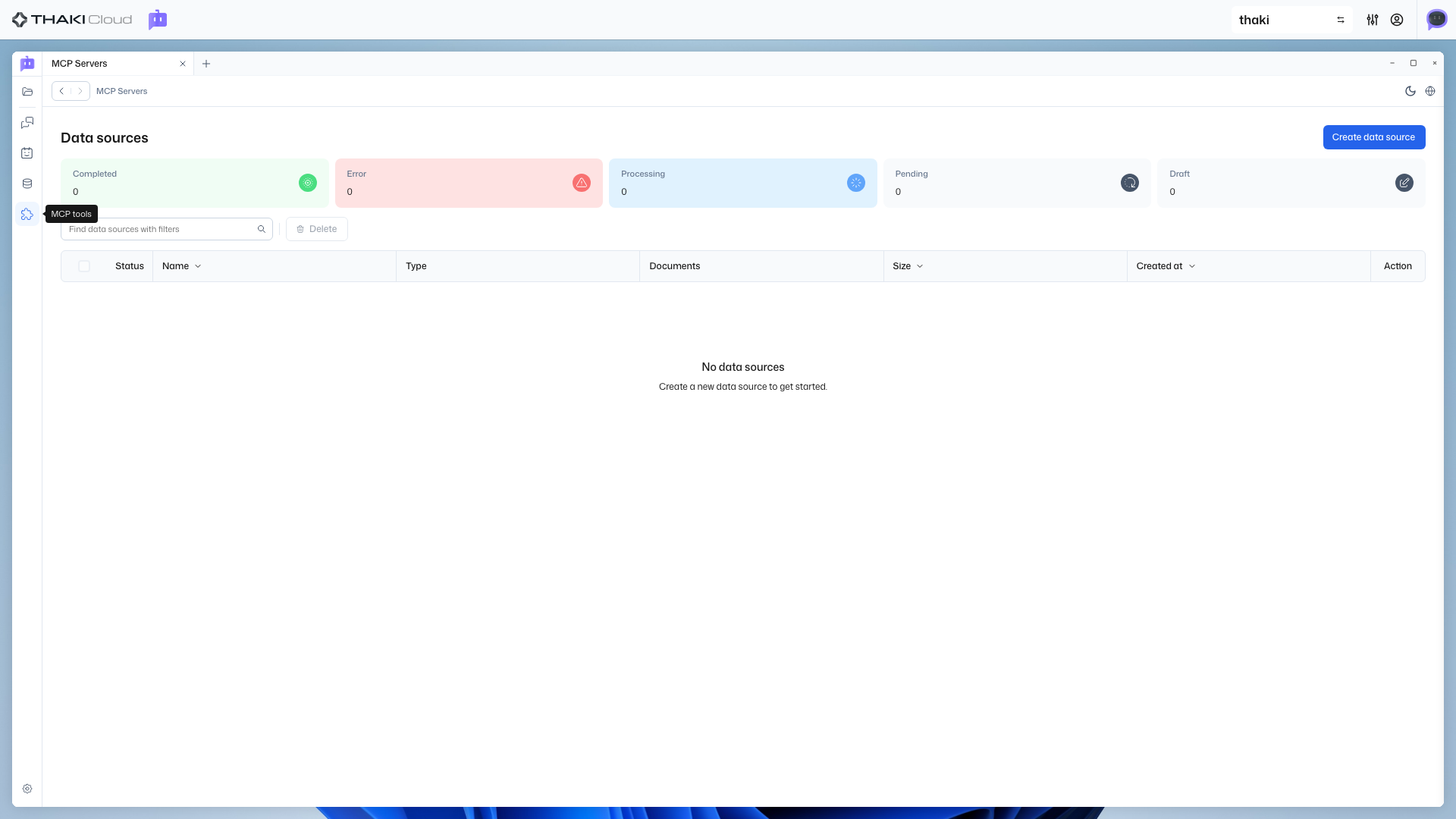
Major MCP Servers
| Server | Description | Use Case |
|---|---|---|
| Web Search | Web search capability | Search for latest information |
| Code Interpreter | Code execution | Run Python code |
| File System | File system access | Read/write files |
| API Connector | API calls | External API integration |
Install MCP Server
1. Select Server
Find the MCP server you want to install in the catalog.
2. Install
- Click on the desired MCP server card
- Click the Install button
- Wait for installation to complete
3. Activate
After installation, activate the server.
- Go to the Installed tab
- Find the installed server
- Click the Activate button
Per-Project Activation
MCP servers are activated per project. To use in a different project, you need to activate separately in that project.
Connect MCP Server
Connect activated MCP servers to your agent.
Connect to Existing Agent
- Go to the Agent tab
- Click on the agent to connect
- Click the Edit button
- Select servers to connect in the MCP Servers section
- Click the Save button
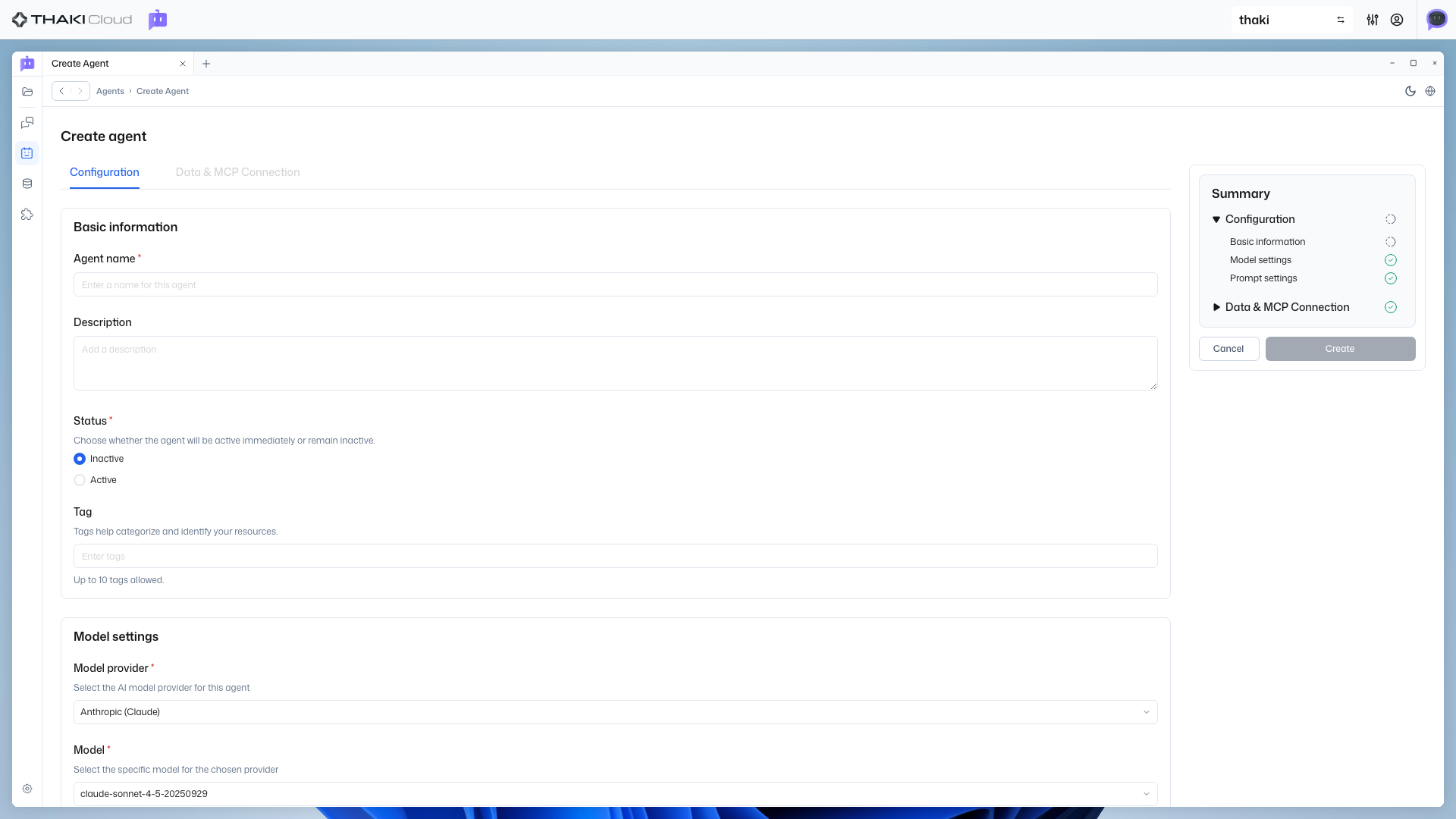
Connect During New Agent Creation
You can select MCP servers in the second step of agent creation.
Using Tools
When chatting with an agent that has MCP servers connected, the agent automatically calls tools as needed.
Example: Web Search
User: What's the weather in Seoul today?
Agent: [Calling Web Search tool]
Today's weather in Seoul is sunny, with a high of 25°C.Verify Tool Calls
You can see which tools the agent called in the chat screen.
Tool Call Display
Tool calls and their results are displayed on screen when invoked.
Next Steps
- Agent Management - Modify and manage your agents
- Quick Start - Start from the beginning